Allegro Project Management
The projectManager module of the allegroUtils helps Allegro to setup and manage the ALMA projects, in particular with respect to directory structure, data security and accessibility.
The Project Manager Wizard is a GUI that takes over most of the tasks in a highly interactive way. It can be started with
$ pm_wizard
You can start it as a normal Allegro member, but modifications have to be done by user alma.
The five key tasks of the wizard are to...
- ... manage Allegro Projects
- ... manage Allegro Users and Visitor Accounts
- ... manage Public Datasets
- ... manage Face-to-face Visits
- ... give a QA2 Overview
Under the hood, the Wizards makes use of the class allegroUtils.projectManager.projects:
>>> from allegroUtils import projectManager
>>> pm = projectManager.projects()
Allegro Projects
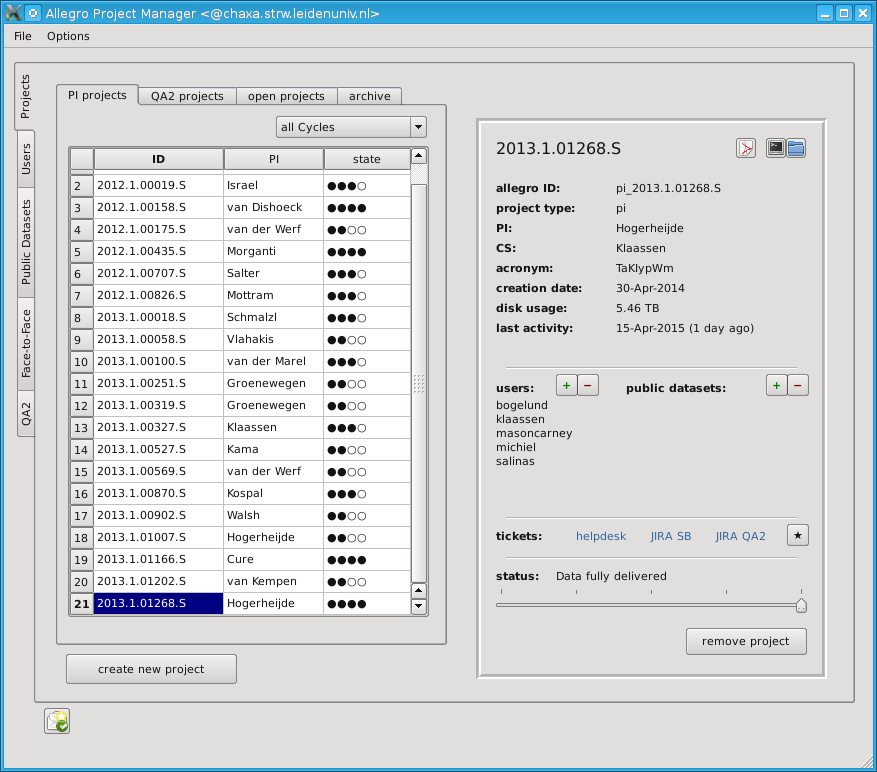
Project Tab of the Project Management Wizard.
When opening the Wizard, you will be shown the Projects tab. It lists all the active projects, sorted by category (PI, QA2, open).
An Allegro project is a place where only a selection of users has access to work on ALMA data. A project can be that a PI got granted ALMA time (PI project), we at Allegro perform QA2 work (QA2 project), or visitors or STRW users download data from the archive or bring their own dataset and want to work (single or in a group) on that dataset (Open project).
Projects are stored in $ALLEGRO/data/projects. The project metadata is stored in $ALLEGRO_DB/projects. This directory contains a csv-file for each project, containing information about project ID, users, linked datasets, status, etc. Other metadata, e.g., last project access times or directory sizes, are stored in $ALLEGRO_DB/projects/.stats. This file is updated by a daily cron job.
Every project has a unique ID, called Allegro ID. This usually consists of a prefix for the project type (pi, qa2, or open) and the Project ID. For ALMA projects (PI, QA2), the Project ID must be the ID that is assigned during the proposal submission process. For Open projects, the project ID can be an arbitrary string.
So one ALMA project (e.g., 2013.1.12345.S) can have two Allegro Projects (pi_2013.1.12345.S and qa2_2013.1.12345.S). This ensures that if we do QA2 in house, the PI will not see the data before the actual delivery.
Archived projects have an additional prefix, namely the creation date of the project. This way we ensure that we can make QA2 for two different SBs of a single ALMA projects, without files etc. conflicting with each other in the archive. Archived datasets can be found in $ALLEGRO_STAFF/projects/alma/archive/.
Project Cookbook
List Projects
- (Start the pm_wizard)
- Click on the Projects tab (starting up the wizard defaults to this option)
- Click on a project to get extended information about it in the info box
Clicking on the projects tab lists all the projects, sorted by ID. It also lists the project PI and the current project state (indicated by empty/filled bullets; this is mostly only relevant for PI projects). The project listing is also what is shown when you start up the pm_wizard.
The different tabs show you the projects from the different categories. The PI projects tab allows you to select projects from a certain cycle by using the Cycle-combobox. By default it selects “All Cycles”.
Create a New Project
Start the pm_wizard as user alma
Click on create new project
Select the type of Project (PI, QA2, OPEN)
Specify the Project ID
Note
This must be the ALMA Project ID for PI and QA2 projects, but it can be an arbitrary string for Open projects
Specify the Project PI.
Note
This is only for bookkeeping purposes, since most of the proposals are easier to identify when you know the PI rather than the project ID.
Your project will then appaear in the respective section. In the background, a directory with a 8-digit alphanumeric name (the so-called acronym) has been created in /lustre/allegro/data/projects. Access is restricted to Allegro-members only. This directory contains at least two directories:
- archive: This is where the raw data goes
- analysis: This is where user directories go (once you have linked a user to a project)
- doc, sb, proposal: These directories appear, depending on which type of project you have.
You can then add users, link public datasets, add helpdesk and JIRA ticket IDs, or change the status.
Adding a User to the Project
Start the pm_wizard as user alma
Click on the project so that you see the info in the info window
Click on the + sign next to users
- Specify the STRW username
Note
STRW usernames are all lowercase
The user will receive an email (unless you have disabled sending out system emails by pressing the envelope with the green arrow on the bottom left of the Project Manager Window. If you see the red bar, no emails will be sent out.
If a STRW user is added for the first time, the Project Manager will query the full name from the STRW database and add the username and full name to the list in $ALLEGRO_DB/userNames/userNames.
Removing a User from the Project
- Start the pm_wizard as user alma
- Click on the project so that you see the info in the info window
- Click on the - sign next to users
- Select the user that should be removed
- Specify if you would like to move the data of this user into the project archive
Linking a Public Dataset to the Project
- Start the pm_wizard as user alma
- Click on the project so that you see the info in the info window
- Click on the “+” button sign next to public datasets
- Select the dataset from the dropdown menu
You will then find a softlink to the public dataset in the archive directory of this project.
Note
You are not supposed to tamper with the original raw data from the public dataset. Always - and I really mean always - copy the piece of data you need into your personal directory in analysis/user.
Unlinking a Public Dataset from the Project
- Start the pm_wizard as user alma
- Click on the project so that you see the info in the info window
- Click on the “-” button next to public datasets
- Select the dataset from the dropdown menu
The softlink to the public dataset in archive will be removed.
Changing the Project State
- Start the pm_wizard as user alma
- Click on the project so that you see the info in the info window
- Move the status slider
Removing a Project
Start the pm_wizard as user alma
Click on the project so that you see the info in the info window
click the remove project button
Select if you want to move the project into the archive
Note
Moving the project into the archive is highly recommended. Finding and copying the necessary files can take several minutes, so please be patient.
Re-generating a Project from the Archive
Warning
It is impossible to re-generate a project from the archive!
We currently (but that has to be discussed with the computer group) do not have the proper permissions to archive projects and re-generate them from the archive with the same set of permissions. We are not root, and therefore what happens when a project goes into the archive is that user alma will rsync the parts of the project that we are interested in (fits, txt, images, scripts, ...) into the archive directory in $ALLEGRO_STAFF/projects/alma/archive. But then, user alma will be the owner of these files.
What you can always do is then to simply copy the stuff that you are interested in into the directory of your choice, e.g., a new project.
That is currently how the archive is handled, and since adding root permissions for the archiving process is something we are not going to get from the computer group, that is also how it is going to stay for some time.
Allegro Visitors

Visitors Tab of the Project Management Wizard.
The Allegro Visitor tab gives you an overview over the STRW users that are linked to a project. Here, we also manage the Allegro visitor accounts.
Vistors Cookbook
List STRW users
- Start the pm_wizard
- Click on the Users tab
- Click on the STRW users sub-tab
This lists the STRW users (and their full name), sorted by username. The full names are taken from the list in $ALLEGRO_DB/userNames/userNames. Clicking on a user will show extended information in the info box.
List Visitors
- Start the pm_wizard
- Click on the Users tab
- Click on the visitors sub-tab
This lists visitors, i.e., their full name and their allegro ID. Clicking on a user will show extended information in the info box.
Activate Visitor Account
- Start the pm_wizard as user alma
- Click on the Users tab
- Click on activate visitor account
- Follow the instructions in the terminal
Modify Visitor Expiration Date
- Start the pm_wizard as user alma
- Click on the Users tab
- Click on the visitors tab
- Click on the visitor account so that you see the info in the info window
- Click on the “*” button in the expiration date row
- Define the new expiration date
Deactivate Visitor Account
- Start the pm_wizard as user alma
- Click on the Users tab
- Click on the visitors tab
- Click on the visitor account so that you see the info in the info window
- Click on the remove visitor button
- Follow the instructions in the terminal
Public Datasets
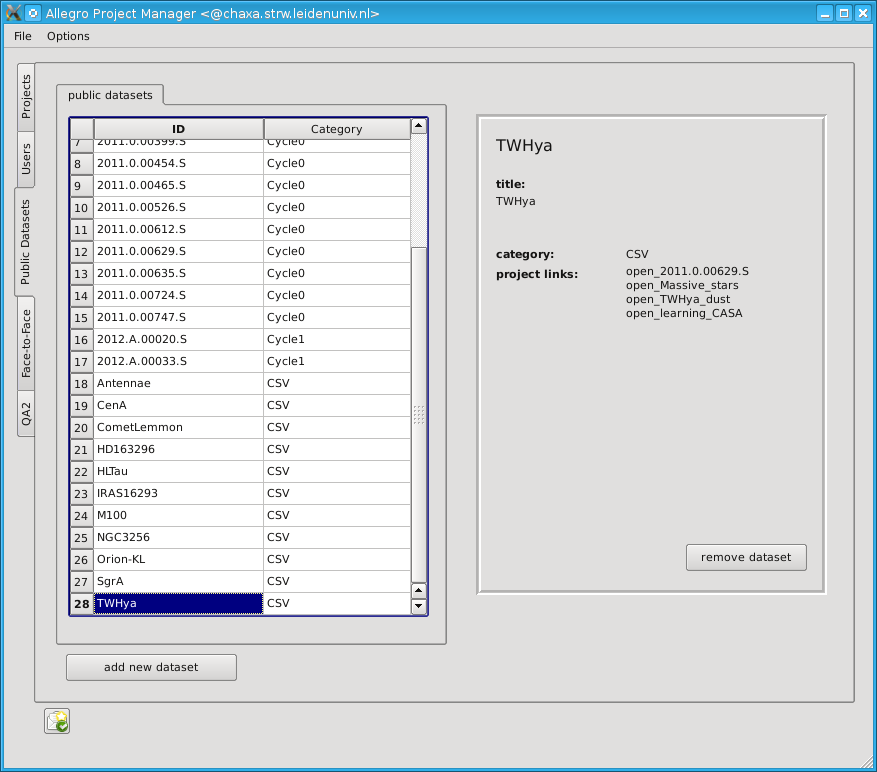
Public Datasets Tab of the Project Management Wizard.
This tab gives an overview of the currently archived public datasets. Public datasets can be found in $ALLEGRO/data/public_dataset_archive.
Public Dataset Cookbook
List Public Datasets
- Start the pm_wizard
- Click on the Public Datasets tab
You can get more detailed information when clicking on a project, e.g., the Allegro project this dataset is linked to.
Add a New Public Datasets
As user alma, download and unpack the data in an arbitrary directory (here this directory is called <publicDatasetDir>). It is recommended to do that in the directory $ALLEGRO/data/public_data_archive/download_tmp.
Set the proper permission (everybody can read, only alma can write) so that users cannot manipulate the dataset. Simply run
$ allegro_permission_archiveStyle.sh <publicDatasetDir>Once everything is complete, move the <publicDatasetDir> into $ALLEGRO/data/public_data_archive.
This procedure ensures that adding the public dataset to the Project Manager is a smoother experience
- Start the pm_wizard as user alma
- Click on the Public Datasets tab
- Click on the add new dataset button
- Select <publicDatasetDir> from the tree window. Since we have already moved the public dataset into its final directory, nothing more will be done. If the dataset would be outside of $ALLEGRO/data/public_data_archive, the script would then copy the data into this directory, which can take quite some time.
Remove a Public Dataset
- Start the pm_wizard as user alma
- Click on the Public Datasets tab
- Click on the dataset that you would like to remove
- Click on the remove dataset button
Face-to-Face Visits

Face-to-face visits Tab of the Project Management Wizard.
This tab gives an overview of the face-to-face support at Allegro. The database for face-to-face visits is $ALLEGRO_DB/f2f, where each visit has a separate csv-file.
Face-to-Face Cookbook
List Face-to-face Visit
- Start the pm_wizard
- Click on the Face-to-Face tab
You can get more detailed information when clicking on a visit.
Add Face-to-face Visit
- Start the pm_wizard as user alma
- Click on the Face-to-Face tab
- Click on the add face-to-face visit button
- Fill out the form. Don’t worry if you do not have all the info: you can always modify it later
Modify Face-to-face Visit
- Start the pm_wizard as user alma
- Click on the Face-to-Face tab
- Click on the face-to-face visit
- Click on the edit button in the info window
- Modify the form accordingly
Remove a Face-to-face Visit
- Why would you want to remove it? Has it not happened? :-D
- Start the pm_wizard as user alma
- Click on the Face-to-Face tab
- Click on the face-to-face visit
- Click on the remove button in the info window
QA2 Projects

QA2 projects Tab of the Project Management Wizard.
The QA2 projects tab gives you some information about the QA2 projects that were done at Allegro. Projects get registered automatically when running the qa2_* scripts (See the appropriate section in the AllegroGuide). Therefore, there is no interaction necessary. The QA2 project database is in $ALLEGRO_DB/qa2_archive, where each QA2 project is a separate csv-file.